
MealLogger Competitions
Let your clients compete head to head for points AND reach their goals
MealLogger competitions are a great new way to engage your clients in healthy eating. The interaction you already give your client using the star rating system becomes a point system visible to your clients on the MealLogger app.
Create competition rules and assign point values based on consuming healthful amounts of food types, supplements and beverages. To compete, the participants post their meals and self-report the number of servings of food types they eat. All competitors will see their scores updated in real-time on the competition leaderboard. You'll need a MealLogger Pro account to create a competition. If you don't have one, sign up here.
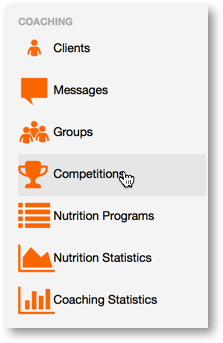
(The Competitions option visible in the MealLogger Pro menu)
How it works
- Choose a competition name
- MealLogger creates a social group for all participants to join:
- This lets your competitors see what other competitors are eating, keep other competitors honest.
- Choose the food types and recommended servings/point amounts for each food category
- Publish the competition
Creating a Competition
To create a competition, click on the Competitions icon in the coaching menu.
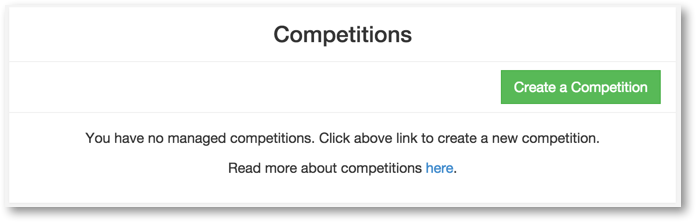
Click on Create a Competition
A competition has three components: a group name, a social group that contains the group members, and the competition rules that govern how competitors will earn points.
Step 1: The Competition Name
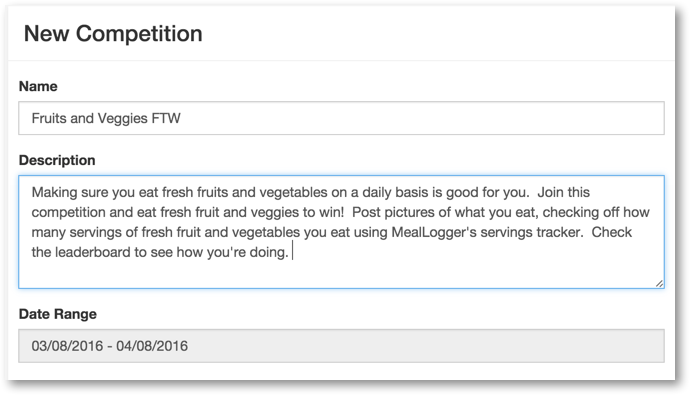
Choose a group name and describe the group competition. Describe the general theme of the competition and describe incentives or rewards for the winner, if your organization is offering them.
Step 2: The Social Group for the Competition
Participants in your competition must join the group in order to be enrolled in the competition. To be enrolled in a competition and to receive points for the eating behaviors you wish to reward, participants must be enrolled in the group.
The group will be created automatically. You can also opt to include an existing group into a competition. Say you have a group named "Pacific Crossfit" where members of your organization already connect. You can configure that group to be part of the competition and members will receive notifications when the competition starts and ends.
Note that by clicking "Date Range" you can assign the start/end dates for the competition. Once you complete the steps to create the competition, you will be shown a number of means to invite members to the group and to publicize the group.

Step 3: The competition rules
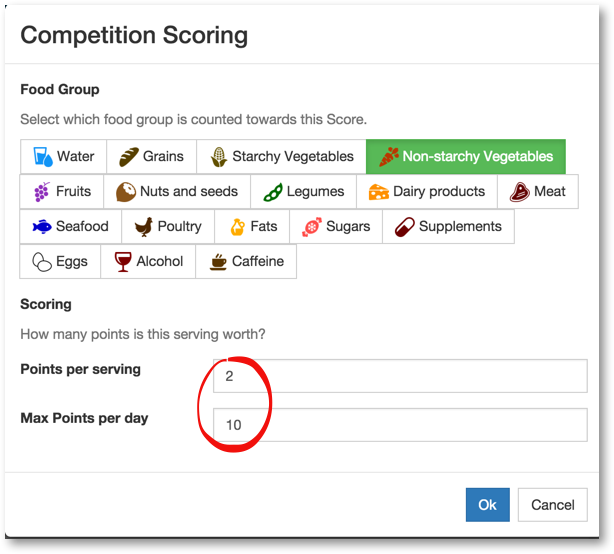
To set up scoring, choose the total servings of the various food types you want your competitors to eat. Set point values and maximum points per day per food type. To compete, your competition members will keep a photo food journal and check off the serving amounts of the food types they eat. In the example below, we'll add two rules to reward the consumption of fruits and vegetables.
Click - Add new scoring criteria to begin adding a rule
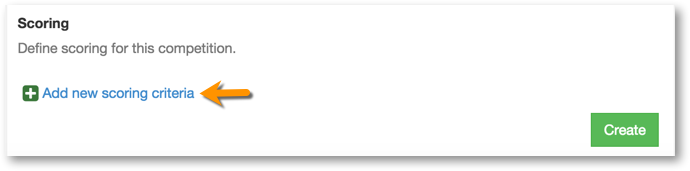
In this example, we'll add the ability for a competitor to score 8 points per day for eating fresh fruit. Select "Fruits" from the food types and assign point values: 2 points per serving; 8 points per day, maximum. Then click OK to save the rule

The rule will be visible in the competition's main screen. Click Add new.. to add more rules until you are done. In this example, we'll add one more rule for non-starchy vegetables.
Your rules will accumulate at the bottom of the competition main configuration screen. The rules can be edited or deleted.
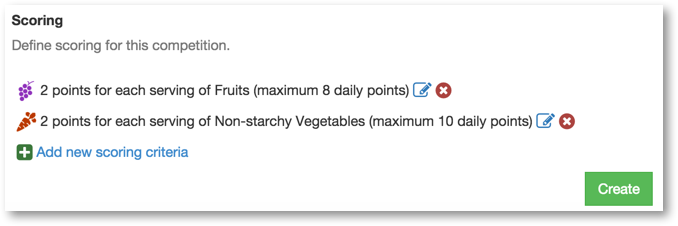
Then click the Create button to save the competition.
How to enroll members into your competition
When the competition is created, the competition's Invite screen is visible:
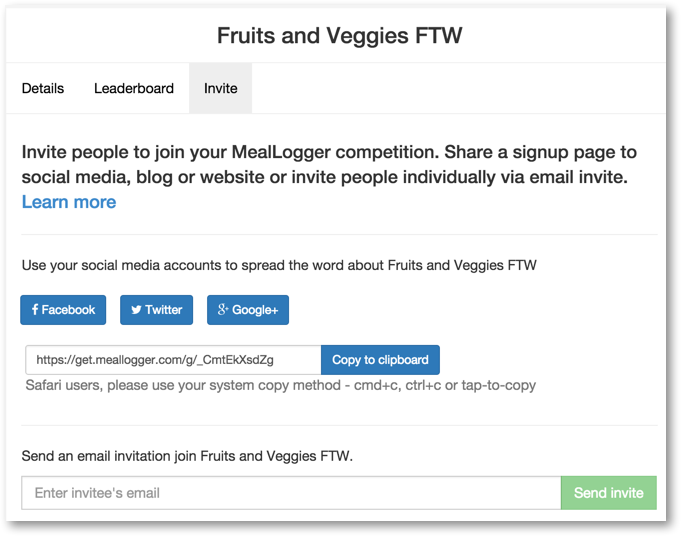
MealLogger features a versatile means to publish a public page announcing the existence of a group. By using the buttons to share to Facebook, Twitter and to copy the share link, you create a page outside of MealLogger that can be posted anywhere a link can be shared.
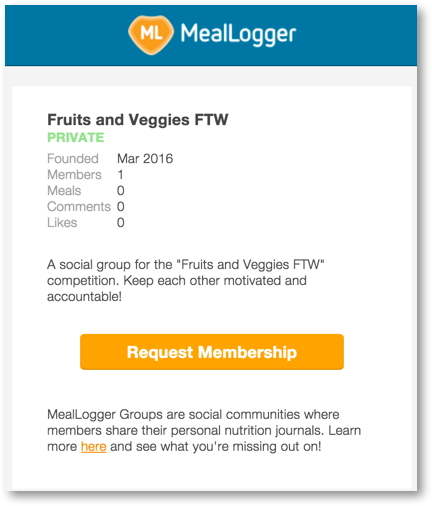
Sharing a page will allow anyone to join the group associated with the competition and it will prompt them to create a MealLogger account if they do not have one.
You can also send individual email invitations to recipients by entering their email address and clicking the Send Invite button.
Comments
0 comments
Please sign in to leave a comment.